Filter row
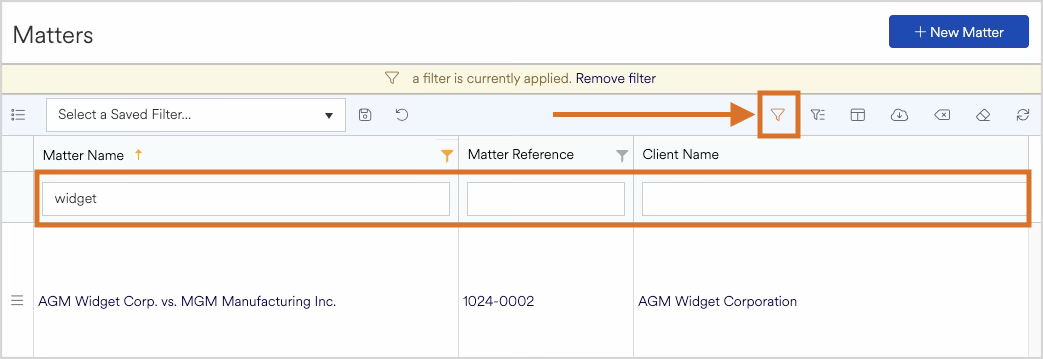
Built-in search box for each column on the first row allows you to quickly filter visible results. This is ideal for quickly locating information without needing to use advanced filters. Especially useful for text-based fields. Search runs across the relevant columns for that grid, returning real-time results. Click on the Filter icon button or press the F key to toggle the filter row visibility.
Advanced column filters
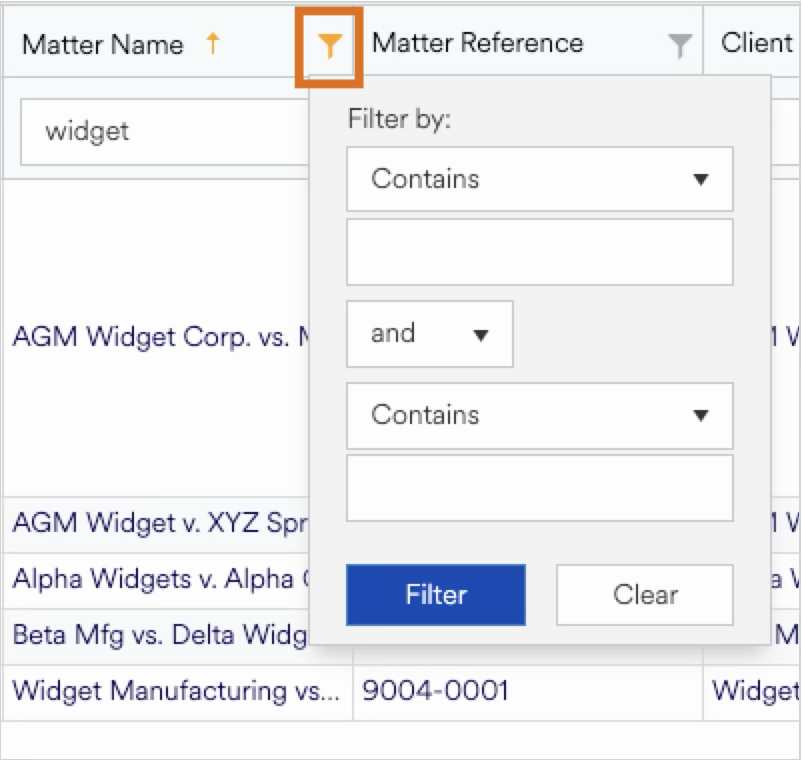
Each column supports detailed filtering options, allowing you to narrow results by specific text, dates, numeric ranges, boolean values, dropdown selections, or multiple conditions. Combining filters provides highly targeted views, making it easy to focus on exactly the data you need.
To access a column’s advanced filtering menu, click on the filter icon to the right of the column name. If a column does not have a filter icon, it means that column does not support filtering.
Column Filter Limits
The grid currently supports up to 2 filters per column at this time. This limit cannot be changed.
Standard filter by menus contain the following options:
Text-based fields:
Contains (default)
Not Contains
Equals
Does Not Equal
Has Any Value
Has No Value
Starts With
Ends With
Number-based fields:
Equals (default)
Not Equals
Has Any Value
Has No Value
Greater Than
Greater Than or Equal To
Less Than
Less Than or Equal To
Yes or No-based fields (boolean):
Yes
No
Date-based fields:
On or After (default)
Before
Has Any Value
Has No Value
Clear Filters
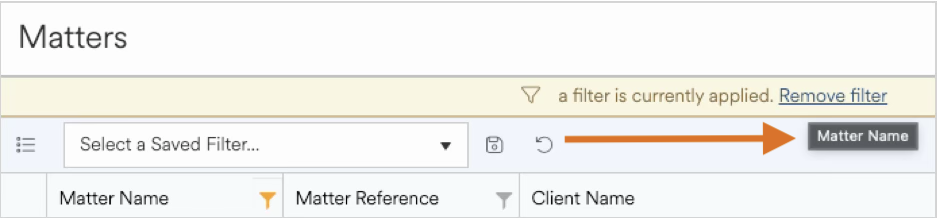
When a grid has a filter applied, a row above the grid will indicate that a filter is currently applied. Mouse over the message, and you will be able to see which columns have filters set.
There are 3 options to clear filters:
Click on the
Remove filterlink — this will remove all filters that are applied across the grid.Click on the
Clear Filtersicon button at the top right of the grid — this will remove all filters that are applied across the grid.
Click on an individual column’s
Filtericon to bring up the advanced filter menu and click on the Clear button — this will remove the filter for just this column, and any other filters will remain intact.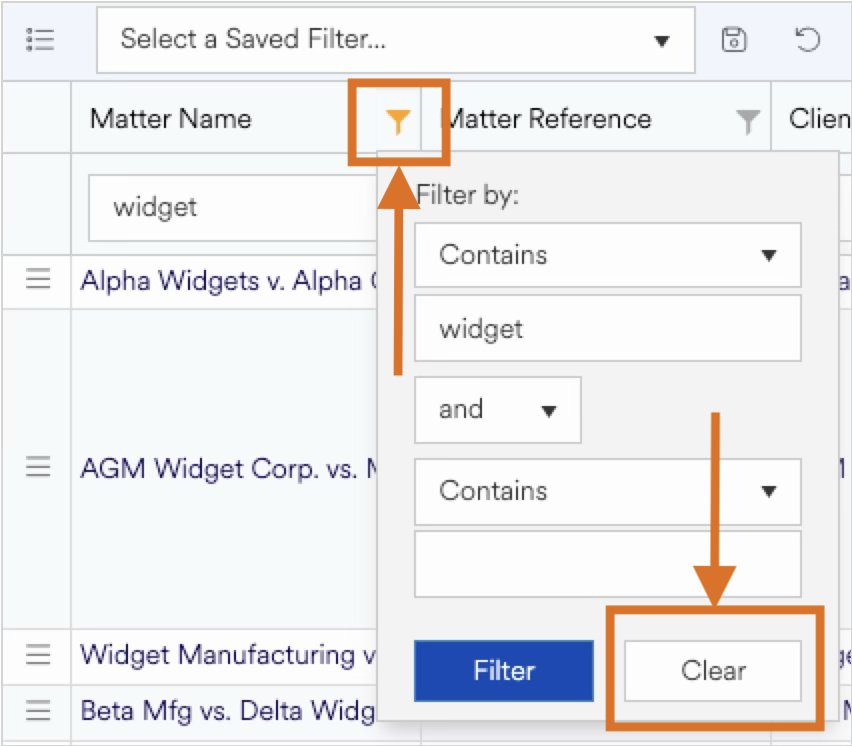
Sortable Columns
Clicking a column header instantly sorts results in ascending, descending, or non-deterministic order. This makes it simple to group similar items, find the most recent records, or organize information alphabetically or numerically.
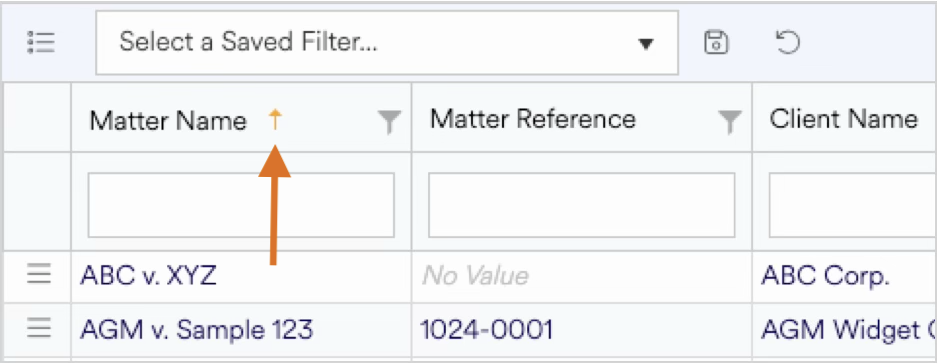
An arrow icon will show which direction a column is currently sorted in:
No icon: Non-deterministic sort order
Up arrow: Ascending sort order
Down arrow: Descending sort order
Column Order
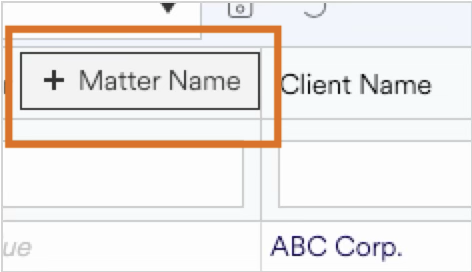
Columns can be rearranged and viewed in any order you prefer, this customization is unique to you and does not affect other users. The columns will stick in the preferred positions indefinitely for a consistent and streamlined experience.
To change the order, click on the heading of any column and drag left or right to the preferred location. As you drag, you will see your column header move with your mouse and two arrows will appear in between where the column will be placed when you let go of the mouse button.
Column Chooser & Personalized Layouts
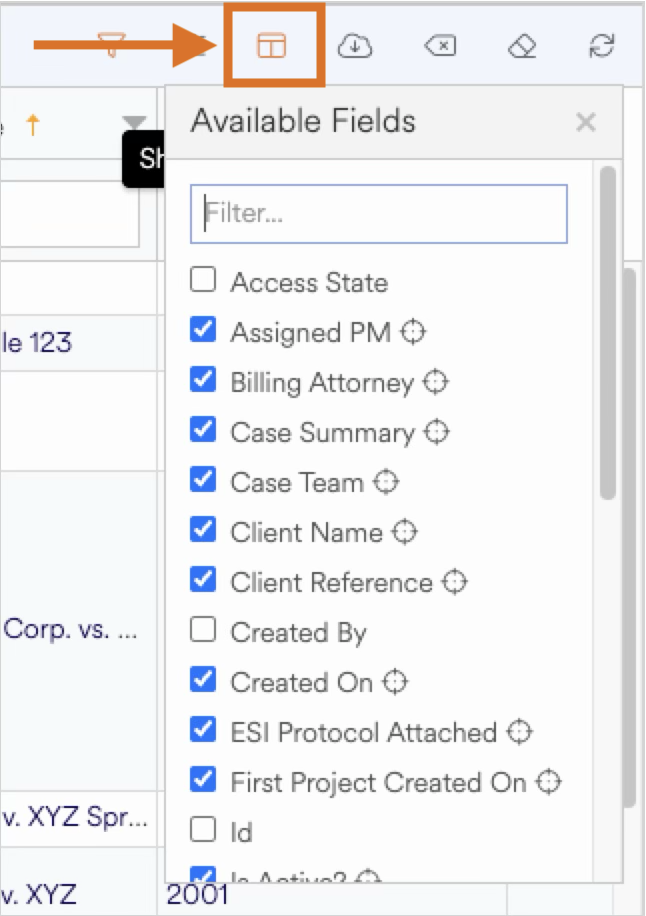
Users can show or hide columns to create a personalized grid layout. This allows you to simplify your view by removing unused fields or expand it when you need deeper detail. Most grids remember your layout preferences for a more efficient workflow.
Click on the field chooser icon to reveal the available columns for a particular grid.
Row Actions & Shortcuts
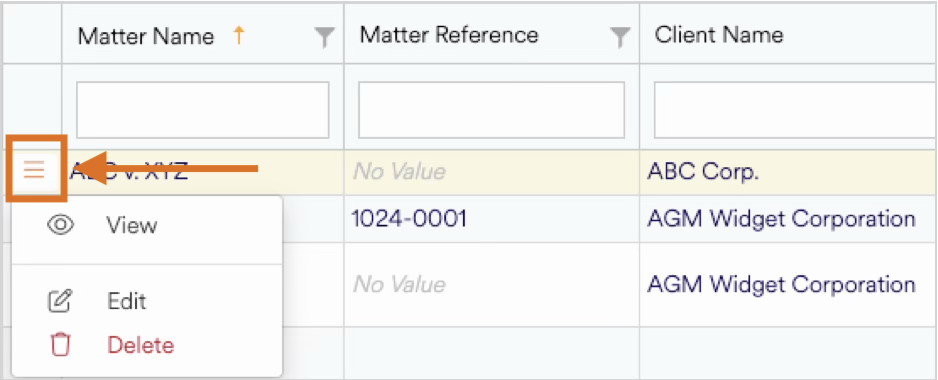
Each row may include action icons or shortcuts for editing, opening details, navigating to related records, or performing context-specific operations. These shortcuts help streamline routine actions and reduce the number of clicks required.
In most cases, available actions are revealed by clicking on the 3-bars icon typically located as the the first column in a grid.
Pagination & Page Size Control
Large data sets are segmented into pages, and you can adjust page size to view more or fewer results at once. This keeps performance smooth while giving you control over how much data is visible on the screen.
Click on a page number at the bottom of the grid to navigate to the next page of data and select a number of pages option to change the number of records shown per page.
.png)
Large data sets & performance
Large data sets with many fields may cause longer loading times, so we recommend keeping the record count low per page for the best possible performance.
Save & Load Grid States
Some grids allow you to save the state of the grid, which saves the current filters you have set up. This allows you to quickly switch between preset filters without having to manually apply the same filters over and over.
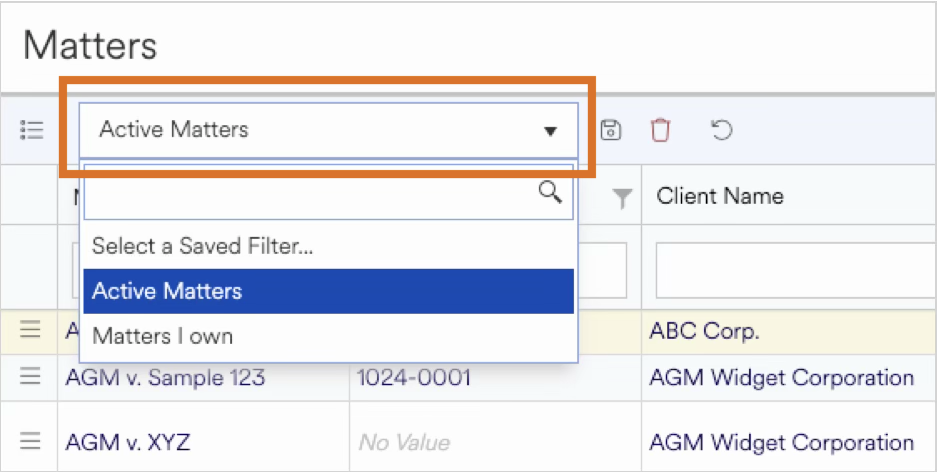
To save a grid state, click on the disk icon button. A window will pop up asking you what you would like to call the state. After saving, it will be available within the saved states dropdown. If you have a save state selected and click the disk icon button, you can overwrite the existing grid state or create a new one. To delete a grid state, click on the trash can icon next to the save button.
Export Data
Some grids allow you to export the data to Excel or a CSV file. To export, click on the export dropdown icon button on top-right of the grid and choose the option you would like. Exports maintain the visible fields, any filters, and sorting.
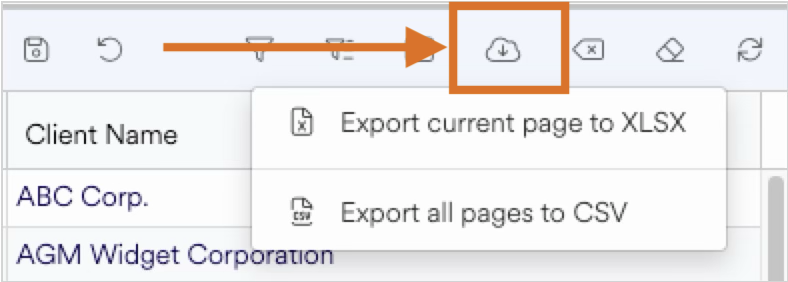
The two options for exporting grid data are:
Export current page to XLSX — exports only the current page of data to an Excel file.
Export all pages to CSV — exports all pages of data to a CSV file.
Responsive Layout
The grid automatically adapts to different screen sizes and resolutions. Columns collapse, wrap, or compress based on available space, ensuring the grid remains usable whether viewed on a desktop, laptop, or tablet.
Consistent Experience Across the Platform
No matter where you encounter a grid in Agility Blue — clients, matters, projects, tasks, users, etc. —the controls and behavior remain consistent. This reduces the learning curve and allows you to quickly understand how to work with any dataset in the system.