How Billing Types Control Time Tracking
Billing Types define how time is converted into billable work within Agility Blue.
When time tracking is enabled for a Billing Type, it determines:
How time is measured (minutes, hours, days)
How time is rounded
Whether minimum or maximum thresholds apply
These settings ensure that all billing entries created from timers follow consistent rules based on the type of work being performed.
Enabling Time Tracking for a Billing Type
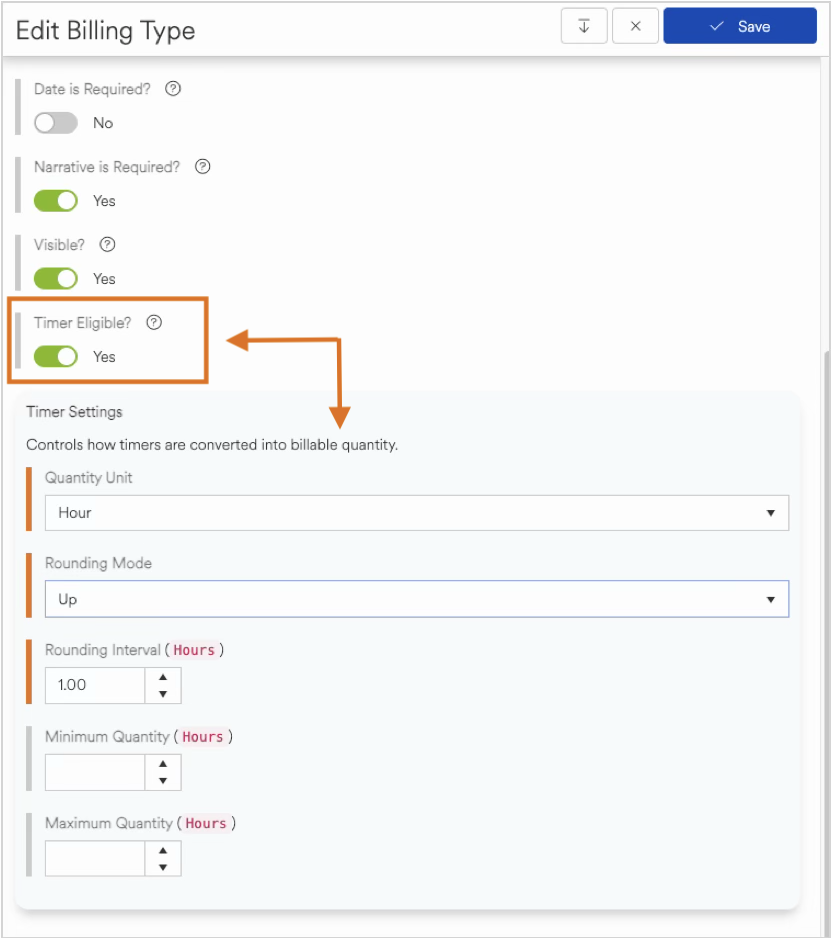
Time tracking is enabled directly on the Billing Type.
Once enabled:
Additional time tracking settings become available
The Billing Type becomes eligible to receive time from task timers
It will be available for selection when creating billing entries from timers
If time tracking is not enabled, the Billing Type will not be available for timer-based billing.
Time Tracking Settings Explained
When time tracking is enabled, several configuration options become available:
Quantity Unit
Defines how time is represented in billing entries (e.g., minutes, hours, or days).
Rounding Mode
Determines how time is adjusted when converting raw elapsed time into a billable quantity:
Nearest
Round Up
Round Down
Rounding Interval
Specifies the interval used for rounding (for example, rounding to the nearest 6 minutes or 0.1 hours).
Important!
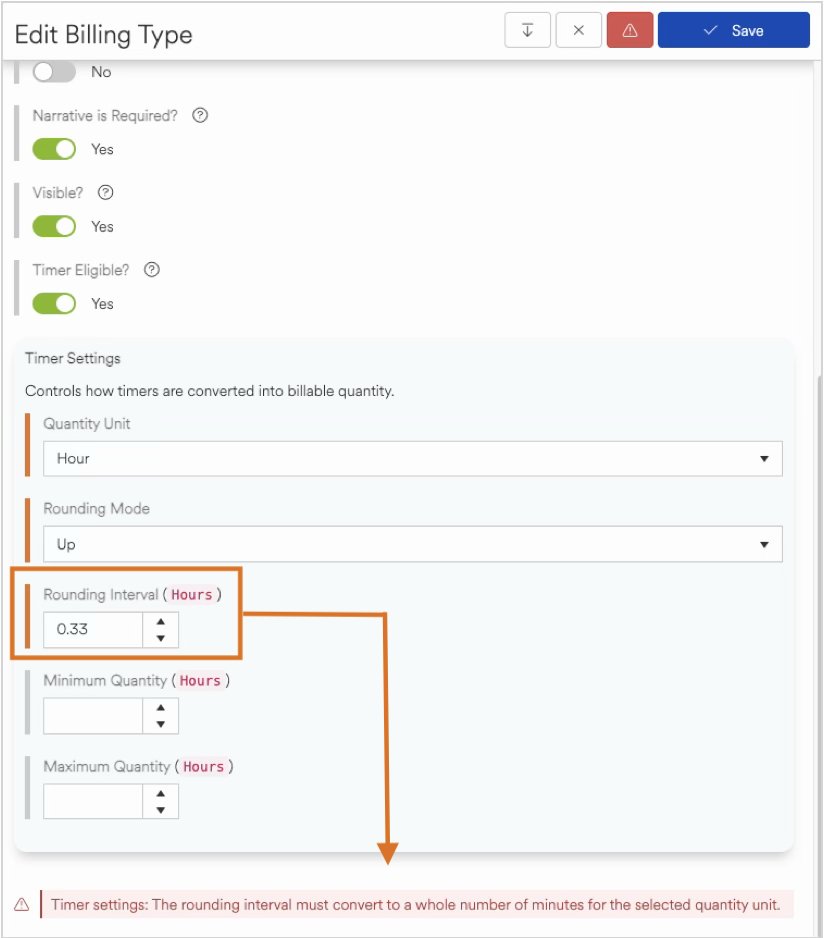
The rounding interval must convert to a whole number of minutes based on the selected unit.
For example (using
houras the selected unit):
✅ 0.25 hours = 15 minutes (valid)
✅ 0.50 hours = 30 minutes (valid)
❌ 0.33 hours ≈ 19.8 minutes (invalid)
If the interval does not convert cleanly, it cannot be used for billing calculations and the system will present you with a validation error, as shown below:
Choosing the Right Unit
If you need more precise intervals that don’t convert cleanly in hours, consider switching the unit of measure.
For example:
Instead of using
0.33 hours(which does not convert cleanly),Use
Minutesas the unit and set a 20-minute rounding interval
This ensures your configuration remains valid while still matching your desired billing increments.
Minimum and Maximum Time
Allows you to enforce thresholds:
A minimum ensures a baseline amount of time is billed
A maximum caps the billable amount, even if more time was tracked
Heads Up!
If you don’t want or need a minimum or a maximum set, leave the inputs blank.
How These Settings Affect Billing Entries
Time tracking settings are applied when a billing entry is created, not while the timer is running.
When a timer is stopped:
The system evaluates the available Billing Types
Only eligible (time tracking–enabled & profile visible) Billing Types are presented for selection
The selected Billing Type’s rules are applied to the recorded time
This means:
Timer data remains unchanged while tracking
Billing behavior reflects the current configuration at the time of billing
Updates to Billing Type settings will affect future billing entries, but not previously created ones
Best Practices for Configuration
Align Billing Types with real workflows
Ensure each Billing Type reflects how work is actually billed in practiceUse rounding intentionally
Choose increments and rounding modes that match your billing standardsKeep configurations consistent
Avoid frequent changes to Billing Type settings unless necessary, as they affect future billing behaviorVerify eligibility
If a Billing Type is not appearing when creating a billing entry from a timer, confirm that time tracking is enabled