Understanding Timer Management
Agility Blue provides multiple ways to manage timers, depending on your role and permissions.
Users can interact with timers directly within tasks, while administrators or authorized users can monitor and manage timers across the entire workspace.
This ensures both flexibility for day-to-day work and visibility for operational oversight.
Working with Timer Controls on Tasks
Timer controls are available directly within tasks, but they may not be visible by default depending on permissions, the state the task is in, and the state the timer is in.
Showing Timer Controls
To access timer controls on a task, select the stopwatch icon on the task

If you have the appropriate permissions, this will reveal the timer controls for that task.
Heads Up!
Users must have at least
Viewpermission for Task Timers in the permissions group they belong to see timer controls. See permissions required for timer management for more details.
Keeping Timer Controls Visible
If you frequently use timers, you can keep the controls visible across all tasks by default by selecting the pin icon button next to the elapsed time on the timer controls toolbar. When active, the pin will be highlighted.
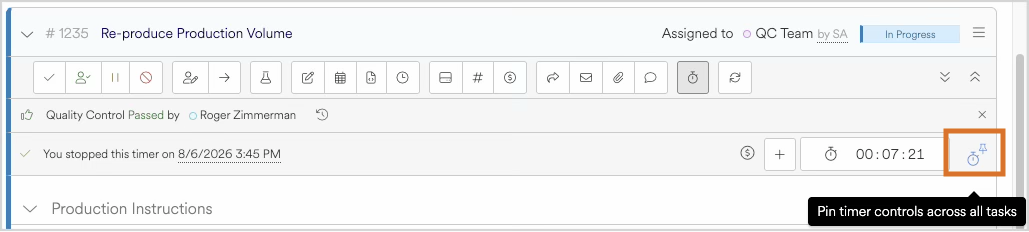
Once enabled, timer controls will automatically appear whenever you open a task.
This eliminates the need to manually show the controls each time.
When Timer Controls Are Available
Timer controls may be limited based on permissions and task state.
Users must have at least
Editpermission for Task Timers in the permissions group they belong to:Start
Pause
Resume
Stop
Cancel timers
Timers cannot be started on tasks that are in a
closed,cancelled, or otherwisecompletedstate
These rules ensure that time tracking aligns with task permissions and workflow status.
Creating Additional Timers on a Task
After a timer is stopped, a plus (+) icon button will appear near the elapsed time, allowing users to create a new timer for the same task.
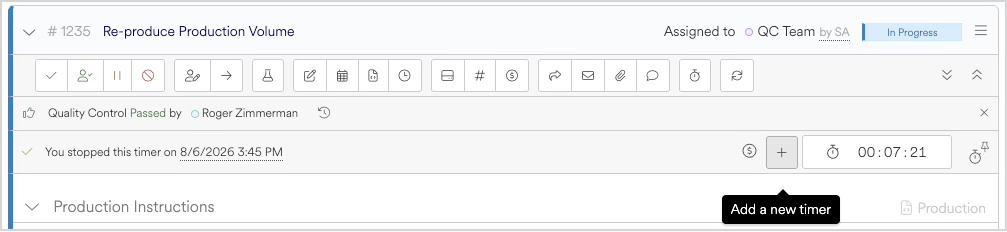
Users can create multiple timers on a single task, but:
Each timer is tracked independently
Each timer results in its own billing entry (they cannot be merged)
Only one timer per user can be actively running on a task at any given time
Heads Up!
While only one timer per user may be active on a given task, a workspace setting can control if multiple timers are allowed to on multiple tasks at the same time. See related settings for more details.
Managing Your Own Timers (Task-Level)
Timers are primarily managed within the task where work is being performed.
From a task, users can:
Start, pause, and stop timers
View accumulated time
Edit or delete their own timers (if permitted)
This keeps time tracking closely tied to the work itself and allows users to manage their time naturally as they go.
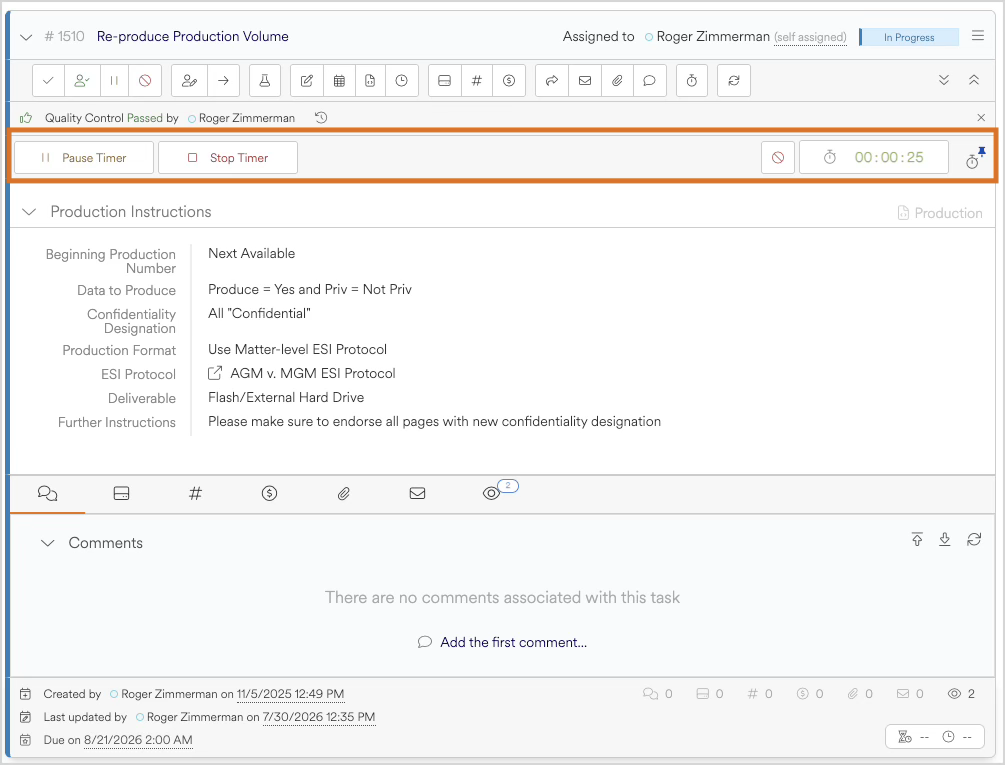
Heads Up!
You can only ever see your own timer information at the task level.
Viewing Your Active Timers
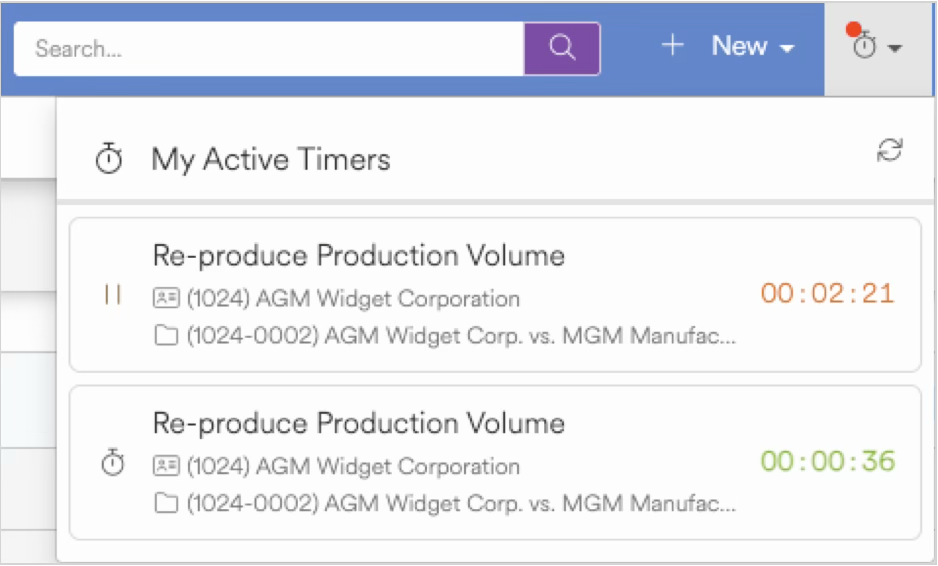
In addition to viewing timers directly within tasks, Agility Blue provides a view for tracking your active timers at the top under the stopwatch menu.
This view displays timers that are currently Running or Paused. When there are timers to display, a red activity icon will appear next to the stopwatch to help indicate you have timers to manage.
From this view, users can:
Quickly see all active timers in one place, what task/matter/client they belong to, and the currently elapsed values in real-time.
Click a timer to navigate directly to the associated task and manage it further.
This is especially useful when working across multiple tasks or when switching between activities.
Managing Timers Across the Workspace
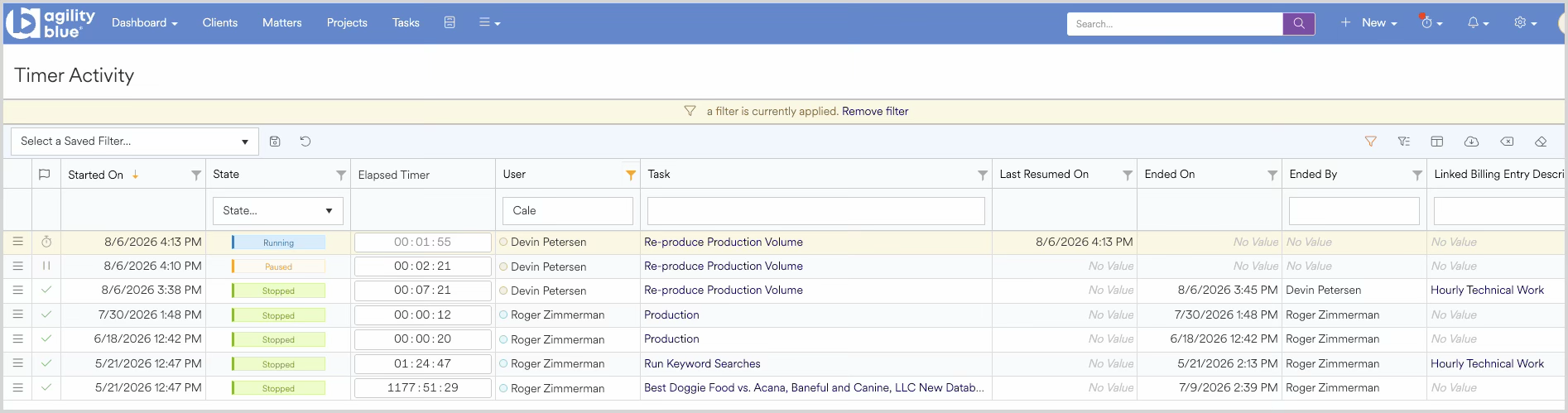
For broader visibility and control, Agility Blue provides a Timer Activity view.
From the Timer Activity page, authorized users can:
View timers across all users
Monitor active and completed timers
Edit or delete timers as needed
This view is especially useful for administrators, managers, or support roles who need to ensure time tracking is accurate and consistent across the workspace.
Permissions Required for Timer Management
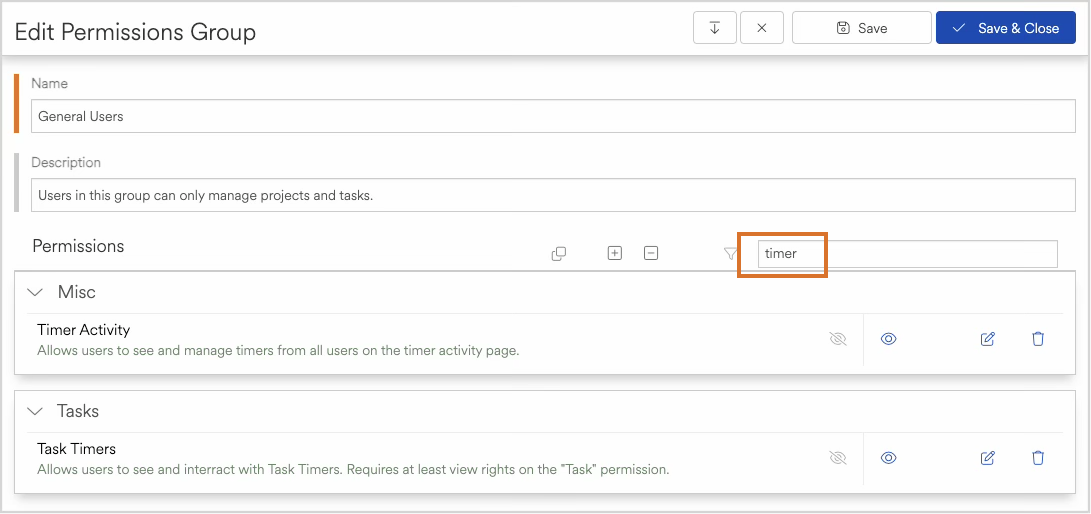
Timer management is controlled through permissions.
Two key permissions are involved:
Task Timers
Allows users to view and interact with timers on tasksTimer Activity
Allows users to view and manage timers across all users from theTimer Activitypage available from the additional pages menu in the top navigation.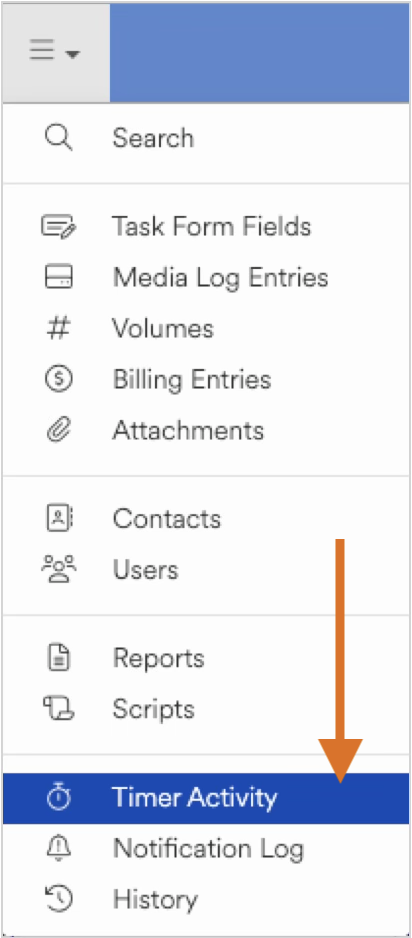
Users without the appropriate permissions may have limited or no access to timer functionality.
Related Settings
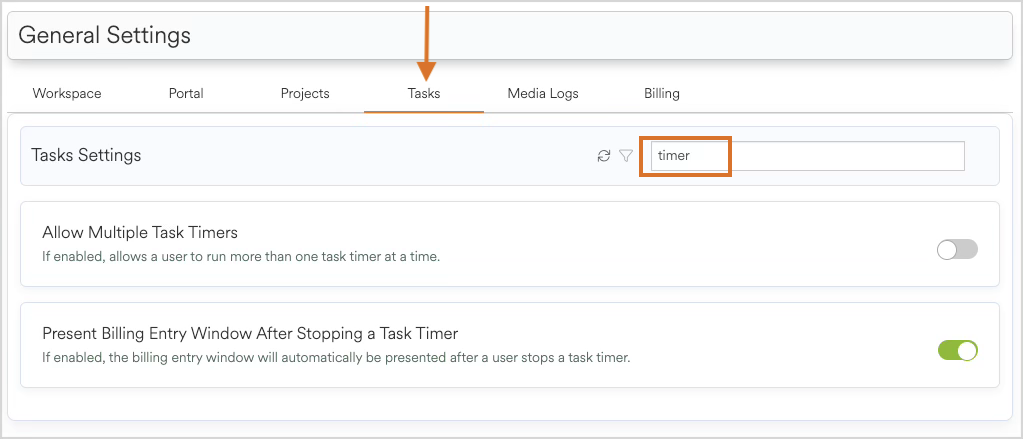
Some timer behavior is controlled by workspace settings:
Allow Multiple Task Timers
Determines whether users can run more than one timer at a timePresent Billing Entry Window After Stopping a Task Timer
Controls whether the billing entry window appears automatically when a timer is stopped
These settings can impact how users interact with timers and should be configured based on your organization’s workflow.
Heads Up!
If the Allow Multiple Task Timers setting is disabled (the default behavior), and users try to start a new timer, they will be presented with a window that asks if they would like to pause any active timers before starting a new one.
.png)
Common Management Scenarios
Here are a few common ways timer management is used:
Managing timer states
Pause, resume, stop, cancel, or delete timers as work progresses or changesMonitoring active work
View which users currently have active timers running and review historical timer usage across users (auditing)Administrative cleanup
Remove timers that were started incorrectly or left running unintentionally
Heads Up!
Timer durations cannot be directly edited or altered. To correct time, users should manage the timer (for example, stop or delete it) and/or use the billing entry process to handle any necessary adjustments.
Best Practices
Ensure proper permissions are assigned
Grant Timer Activity access only to users who need workspace-wide visibilityEncourage users to manage timers at the task level
This keeps time aligned with the correct workUse Timer Activity for oversight, not primary tracking
It’s best used for monitoring and corrections rather than day-to-day use