What Happens When a Timer Stops
When a timer is stopped, Agility Blue uses the recorded time to generate a billing entry.
By default:
A new billing entry window is presented automatically
The recorded time is converted into a billable quantity
The entry is pre-populated based on the selected billing type and the timer settings tied to that billing type
This allows users to immediately review and finalize the billing entry.
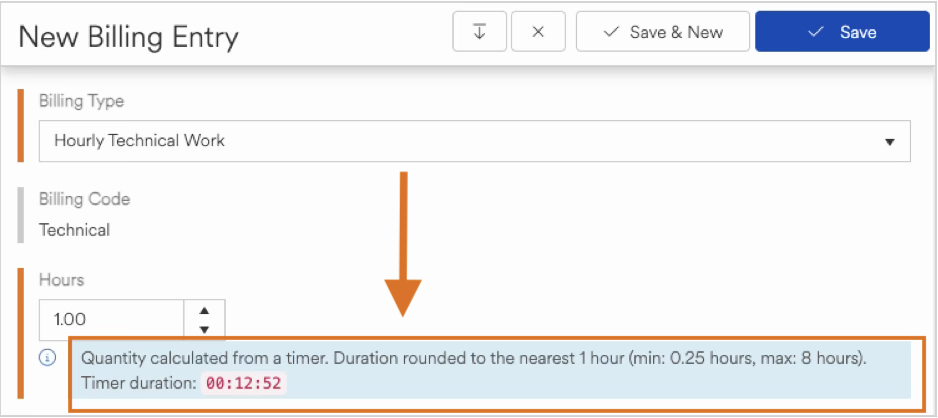
Understanding the Billing Entry Window
The billing entry window is where tracked time is converted into a finalized, billable record.
When the window opens:
The quantity is calculated based on the recorded time
The Billing Type is selected from eligible options
Default values and rules are applied automatically
This ensures that billing entries are consistent while still allowing user input where needed.
Understanding How Quantity Is Calculated
When a billing entry is generated from a timer, Agility Blue provides a breakdown explaining how the quantity was calculated (an example is highlighted above).
This message includes:
The original timer duration
Any rounding rules applied
Minimum or maximum thresholds (if configured)
This helps users understand exactly how the final billable quantity was determined based on the selected Billing Type.
Reviewing and Adjusting the Billing Entry
Before saving, users can review and modify the billing entry.
Users can perform the same actions as when creating a new billing entry:
Adjust the calculated quantity as necessary
Selecting different billing types updates the quantity based on each billing type’s timer settings
Update any additional fields (such as narratives or notes, if applicable)
This provides flexibility while maintaining the integrity of the original tracked time.
Saving the Billing Entry
Once the billing entry has been reviewed:
Save the entry to finalize it
The entry becomes part of the billing record and a link is established between the finalized timer and the billing entry
Any applied rules (rounding, minimums, etc.) are preserved
After saving, the billing entry can be managed through standard billing workflows.
When Billing Entries Are Not Automatically Created
In some environments, the automatic billing entry window may be disabled.
In these cases:
Stopping a timer will not open the billing entry window
The recorded time is still retained
Users must manually create a billing entry when needed. A button is available on the timer to manually initiate a new billing entry using the timer’s recorded time.
.png)
Scenarios where this may apply are ones where automations are considered, such as scripted events that automatically creates billing entries behind the scenes after a timer is stopped.
Key Things to Remember
Timers store raw time
Billing entries apply rules such as rounding and unit conversionBilling Types control behavior
Only eligible Billing Types are available when creating entriesEntries are editable before saving
Users can adjust values as needed during the review processTimer data is not altered
Adjustments are made at the billing entry level, not the timer itself