A context menu is available on all task cards to allow users to quickly interact with tasks directly from the Kanban view. To access the context menu, click on the 3 bars icon at the top right of any task card.
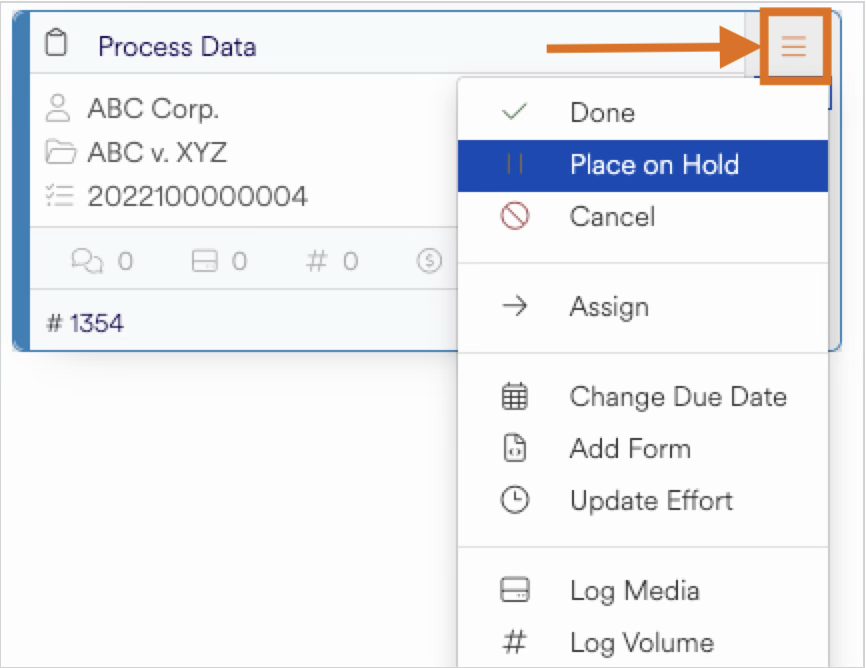
The actions available will vary based on the status of the task and any permissions set but may include:
Done — Moves the task from
In ProgresstoCompletedSelf-Assign & Done — Moves the task from
In ProgresstoCompletedwhile also changing the assignee to the current user (if equipped with appropriate permissions)Place on hold — Places the task
On HoldA comment is required to move a task from
In ProgresstoOn Holdor back toIn Progressfrom beingOn Hold.Cancel — Cancels the task (does not remove history or comments).
A comment is required to cancel a task.
Assign to me — Assigns the task to the current user
Assign — Provides a drop down to select from authorized users or teams and assigns the task to the user or team of users
Change Due Date — Changes the due date of the task
The task’s due date cannot extend beyond the due date of the associated project.
Add Form — Allows the user to add additional forms to the task
Log Media — Allows the user to fill out a new media log entry
Log Volume — Allows the user to add a new volume to the task
Log Billing — Allows the user to add a new billing entry for the task
Share — Allows the user to share the task details via email
Attach Files — Allows the user to attach files to the task. Files can be dropped into the attachment window or selected via browsing
Add Comment — Allows the user to add a new comment to the task
Edit — Allows the user to edit the task details
Clone — Allows the user to clone the task. Cloned tasks will carry over all included forms and field details but will exclude associated data such as comments, volumes, media, billing, attachments, etc.
Move — Allows the user to move a task to a different project
Delete — Deletes the task. Additionally the following actions are taken on associated data:
Task comments are deleted
Media log entries are not deleted and become disassociated
Volumes are not deleted and become disassociated
Billing entries are not deleted and become disassociated
Attachments are not deleted and become disassociated
Task emails are not deleted and become disassociated