The task board begins with a header bar that gives you controls for filtering tasks, enabling multi-edit mode, choosing whether to show draft tasks, and refreshing the board. Underneath, the board is divided into three swimlanes — New, In Progress, and Completed Today, each displaying task cards based on their current status.
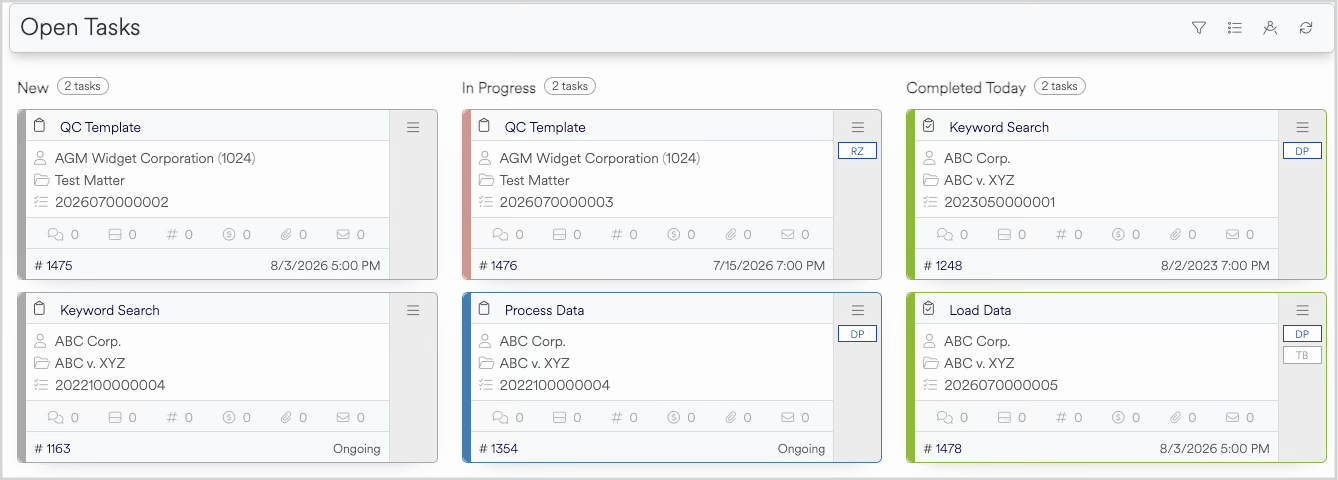
The New lane contains all tasks that are awaiting assignment, the In Progress lane contains all tasks that have been assigned and are currently in various stages of progress. The Completed Today lane contains all tasks completed on the current date, tasks reside here until midnight in the corresponding time zone.
Filtering
Click on the Filter button to reveal the available filtering options:
.png)
Use filters to narrow tasks by:
Text on any card
Task status (multi-selectable)
Is Late?
Task created by (multi-selectable)
Task assigned to (multi-selectable)
Project owner (multi-selectable)
Project requester (multi-selectable)
Edit multiple cards at once
Click on the Multi-edit button to reveal the available multi-edit actions:
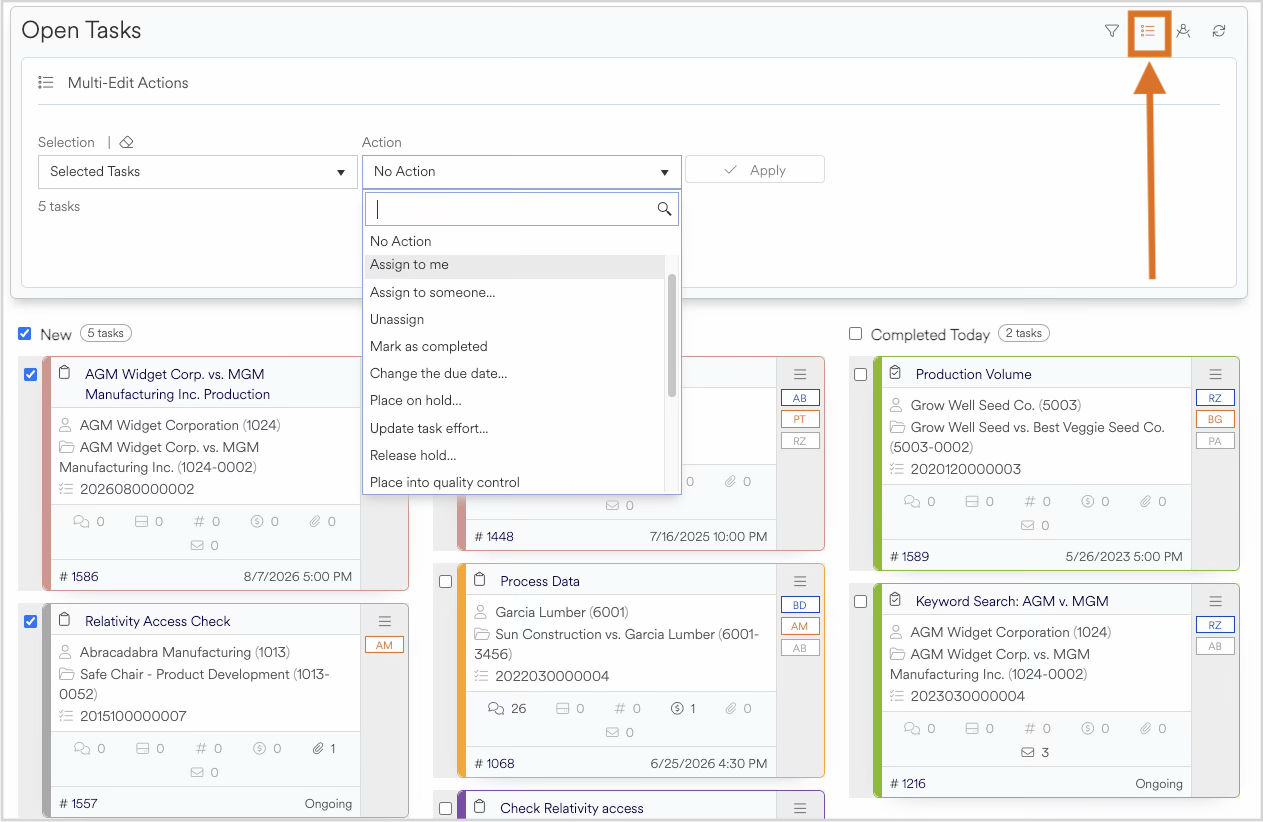
Select the desired tasks, determine an action to perform, and click the apply button. Actions include:
Assign to me — assigns the selected tasks to you.
Assign to Someone… — opens a window that allows you to select a team or individual to assign the selected tasks to.
Unassign — unassigns the selected tasks.
Mark as completed — marks the selected tasks as completed.
Change the due date… — opens a window that allows you to update the due date for the selected tasks.
Place on hold… — opens a window that allows you to make a hold comment for the selected tasks.
Update task effort… — opens a window that allows you to update the task effort for the selected tasks.
Release hold… — opens a window that allows you to make a release hold comment for the selected tasks.
Place into quality control — marks the selected tasks as being in quality control.
Add a comment… — opens a window that allows you to make a comment for the selected tasks.
Add subscribers… — opens a window that allows you to select teams or users as subscribers for notifications for the selected tasks.
Move to project… — opens a window that allows you to select a project to move the selected tasks to.
Cancel — cancels the selected tasks.
Reopen — reopens the selected tasks.
Delete — deletes the selected tasks.
Include Draft Tasks
Click on the Include draft tasks button to include tasks that are a part of draft projects. These tasks can be identified by their dotted borders.
.png)