Overview
Agility Blue allows users to create new work by sending an email directly into the system.
When an email is sent to the managed inbox, Agility Blue automatically creates a new project and task based on the contents of the message. This makes it easy to capture requests, instructions, or incoming work without needing to log into the application.
How It Works
When an email is received by the managed inbox, Agility Blue processes the message and creates a new project and task.
The system uses the contents of the email to populate the task, including the subject, body, attachments, and sender details. This ensures that all relevant information is captured and immediately available within the workspace.
Heads Up!
In most cases, the system creates the task and any related data (email, attachments, comment) within a minute of sending the email.
What Gets Created
When an email is sent into Agility Blue:
A new project is created
A task is added to that project
The email body becomes the task instructions
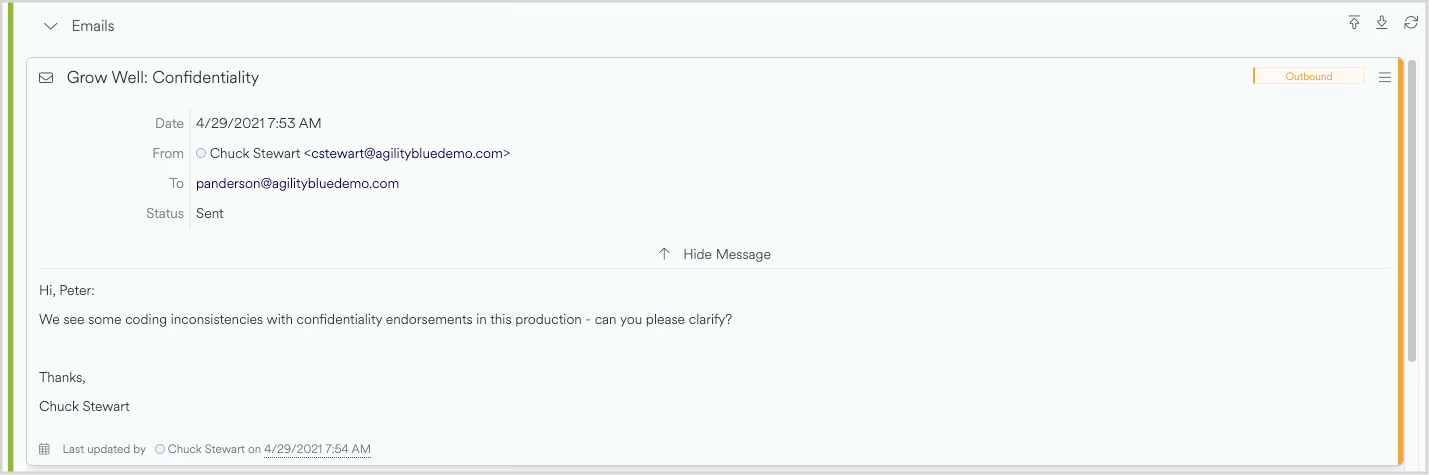
A task email is added to the task
Any attachments are uploaded to the task
The sender and any other recipients are linked as a contacts
Where the Information Comes From
Agility Blue uses standard parts of the email to build the task:
The subject line becomes the task name
The body becomes the task’s instructions
Attachments are stored and linked to the task
The sender is used to identify or create a contact
This allows users to structure work naturally, just by writing an email.
Common Ways to Use This Feature
Users typically email into Agility Blue in a few common ways:
Sending a new request email directly to the managed inbox
Forwarding an existing email into the system
Including the managed inbox in an ongoing conversation
In all of these cases, Agility Blue treats the message as new work unless it can determine that the email belongs to an existing thread.
Draft vs. Active Projects
Depending on your workspace settings, new projects may be:
Created as Drafts for review and triage. Draft projects and tasks show up in the drafts dashboard and are not attached to any specific matter.
Created as uncategorized Active Projects immediately. These projects are placed directly into a matter named “Uncategorized”.
This allows teams to control how incoming work is introduced into their workflow.
Heads Up!
If you have access to the scripting kit, you can automate the process of identifying matters that incoming email projects and tasks could belong to.
Best Practices
To get the best results when emailing into Agility Blue:
Send or forward emails directly to the managed inbox address
Use clear, descriptive subject lines
Include all relevant details in the email body
Attach files directly to the email when needed
When a New Task Is Created
A new task will be created when:
The email is not part of an existing conversation
The system cannot confidently match the message to existing work
If the email is part of a known thread, it may instead be added to an existing task or email conversation.
What Happens Next
After the task is created:
It appears immediately in the project drafts area of the workspace by default
Notifications may be triggered based on configured rules
Users can review, assign, and begin working on the task